TD CoPilot
TheTD CoPilot software can be used to calibrate the eye tracker, define the settings for calibration, check the battery life of theTD Pilot Base etc.
To access theTD CoPilot follow this procedure:
- Select theTD CoPilot app,
 .
. - TheTD CoPilot opens.
Calibration 
The eye tracker in theTD Pilot can be calibrated here.
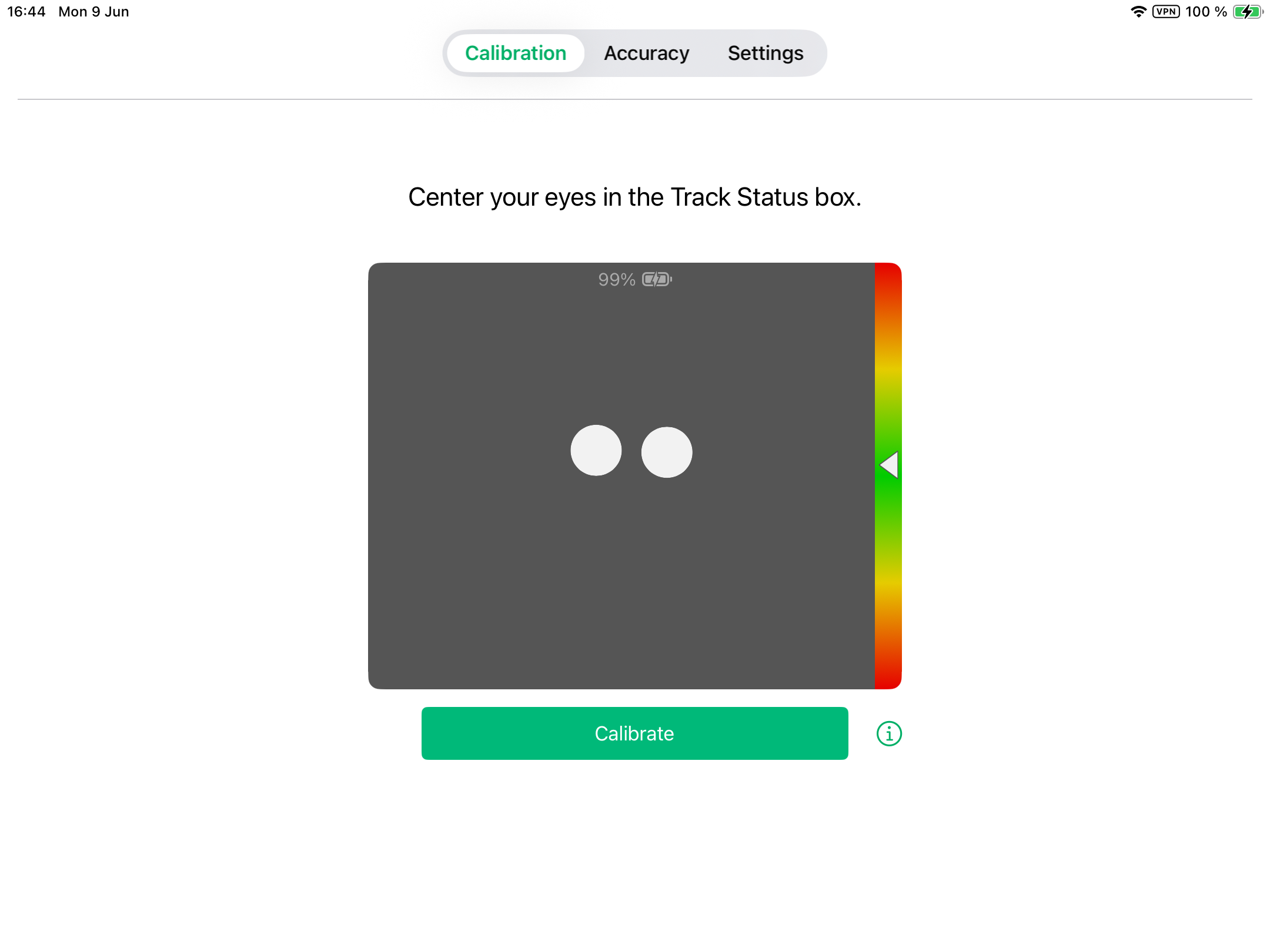
Start Calibration
- Open the TD CoPilot app.
- Make sure the user is correctly positioned in front of theTD Pilot device.
- For more information about positioning, seePositioning and Track Status.
- Select the Calibrate button.
- Follow the on-screen instructions.
Accuracy 
On the Accuracy page the calibration can be tested, using pre-defined targets on the screen to see if the user needs to re-calibrate the Eye tracker.
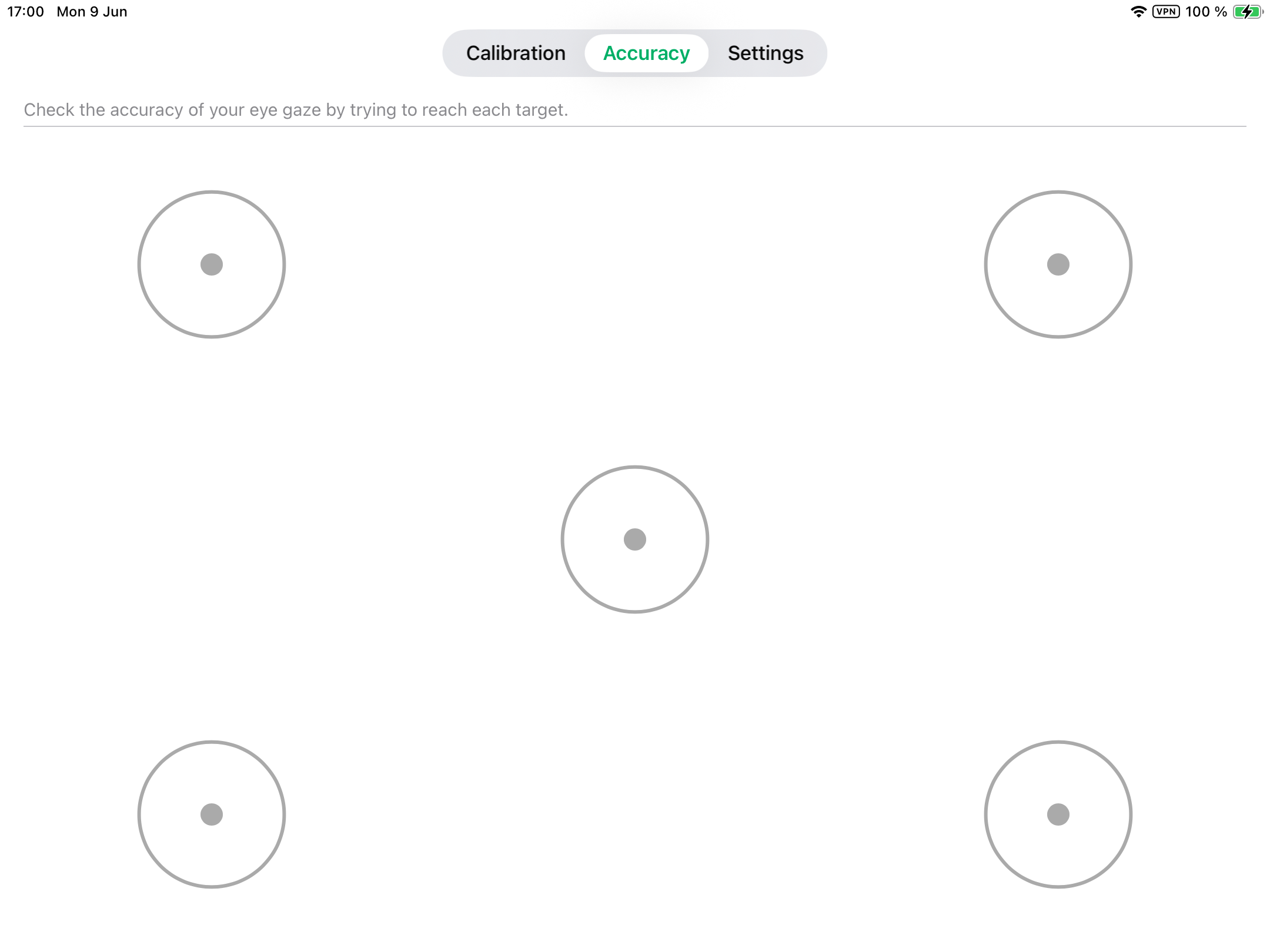
Look at each dot in each circle on the screen to see how accurate the eye tracking is in that area.
Settings 
Calibration
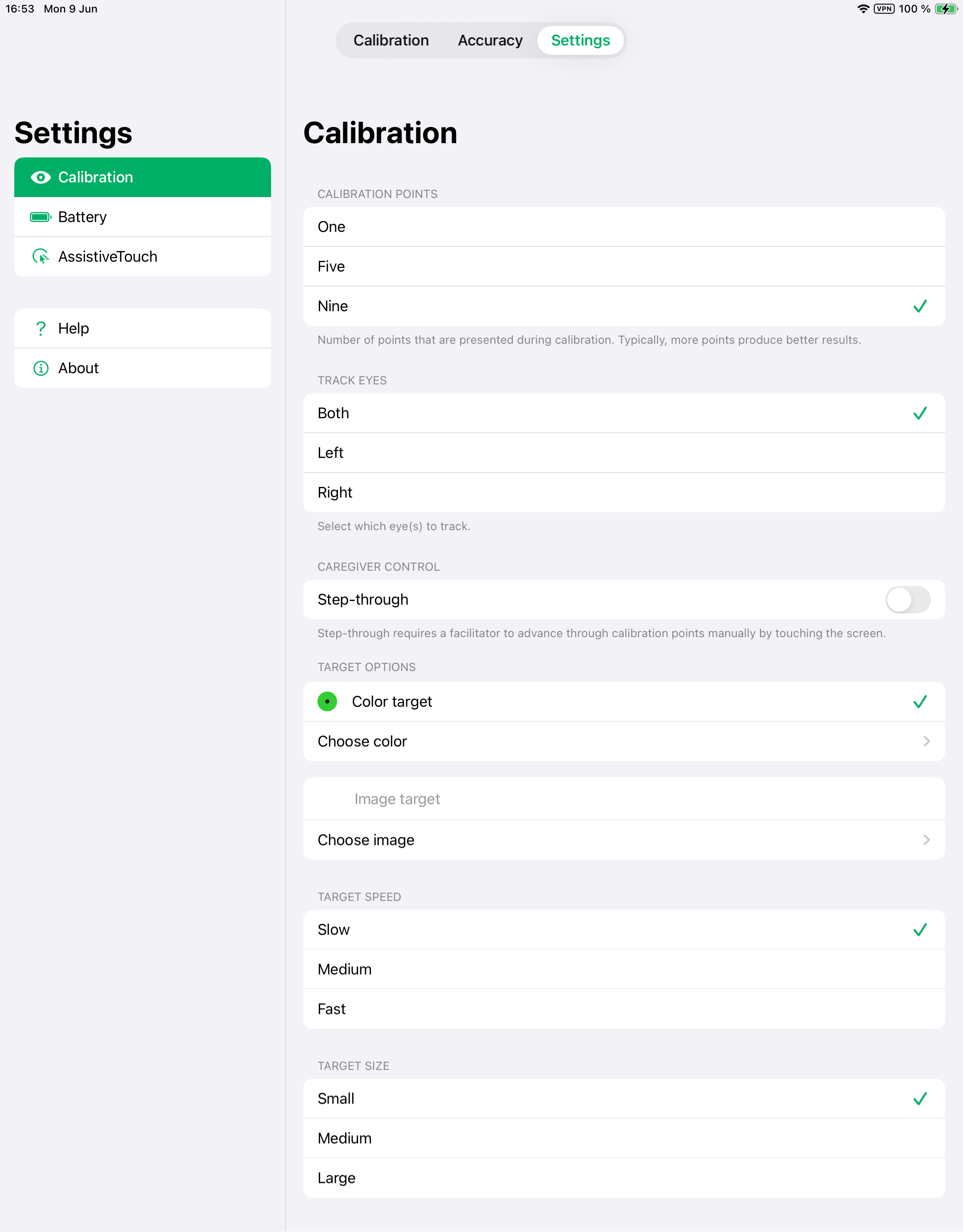
CALIBRATION POINTS
Select how many targets will be used to calibrate the eye tracker. The more calibration points used, the better calibration result will be:
- Open the TD CoPilot app.
- Select Settings button.
- Select the CALIBRATION POINTS:
- One
- Five
- Nine (Default)
TRACK EYES
Select which eye(s) the eye tracker should track when using Eye tracking:
- Open the TD CoPilot app.
- Select Settings button.
- Select the TRACK EYES - SELECT WHICH EYE(S) TO TRACK:
- Both — The eye tracker will track both of the eyes (will get the best performance) (Default)
- Left — The eye tracker will only track the left eye.
- Right — The eye tracker will only track the right eye.
CAREGIVER CONTROL
- Open the TD CoPilot app.
- Select Settings button.
- Select the CAREGIVER CONTROL:
- Step-Through — Toggle Step-Though On to use step-trough calibration function.
- Step-through allows a facilitator to advance through calibration points manually by touching the screen. (Default is Off)
TARGET OPTIONS
There are 2 different target options:
- Colour Target
- Image Target
Select the colour of the colour targets.
- Open the TD CoPilot app.
- Select Settings button.
- Select the Choose colour button.
- Select the colour.
Select the image for the Image targets
- Open the TD CoPilot app.
- Select Settings button.
- Select the Choose image button.
- Select the image from your photos.
TARGET SPEED
Select which speed the targets should move across the screen during calibration.
- Open the TD CoPilot app.
- Select Settings button.
- Select the TARGET SPEED:
- Slow (Default)
- Medium
- Fast
TARGET SIZE
Select the size for the targets when they move across the screen during calibration.
- Open the TD CoPilot app.
- Select Settings button.
- Select the TARGET SIZE:
- Small (Default)
- Medium
- Large
Battery
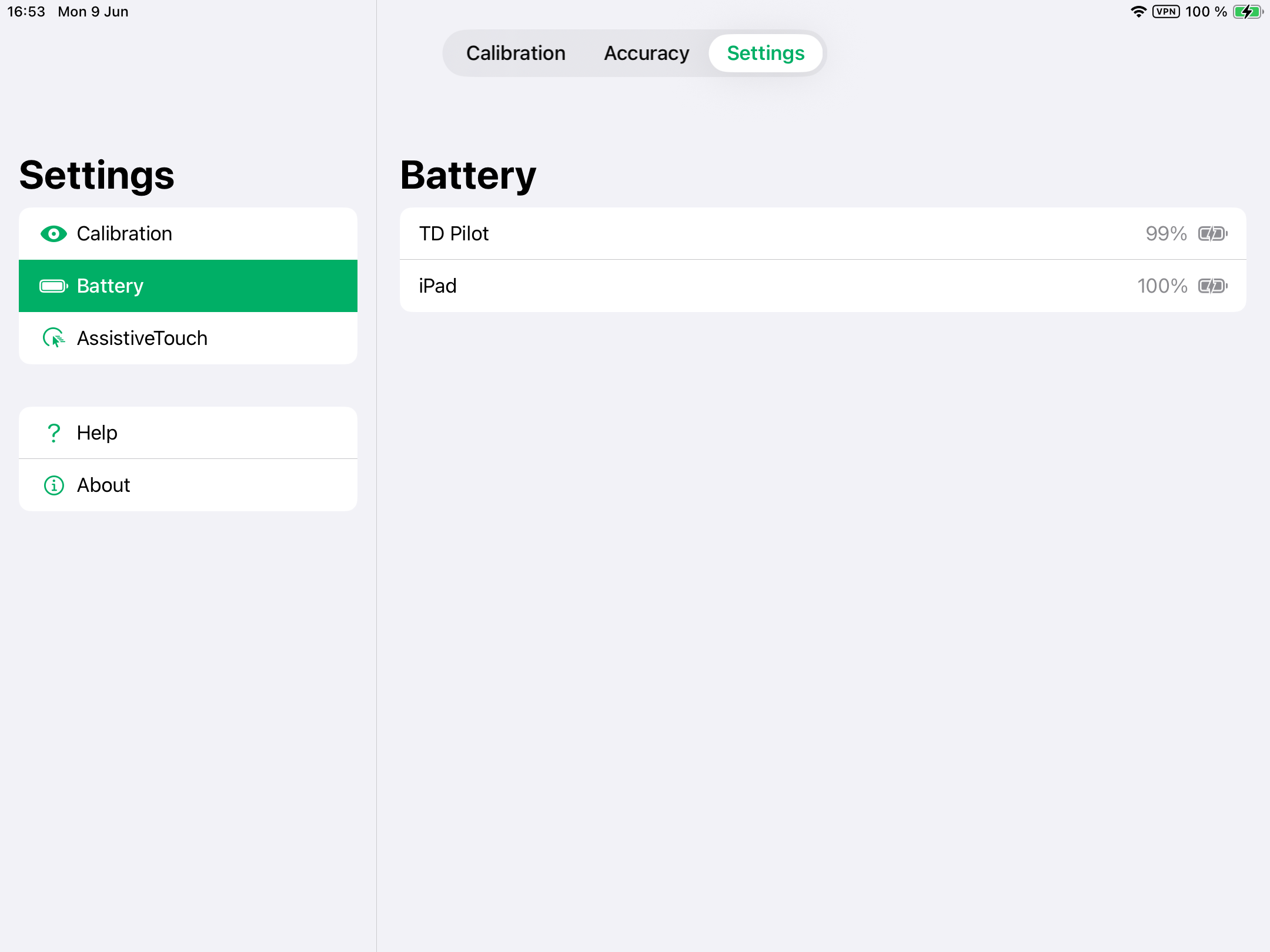
To see the status of theTD Pilot battery:
- Open the TD CoPilot app.
- Select Settings.
- Select Battery
Explanations of symbols:
- Battery icon = Running on battery
- Battery icon with lightning bolt = Charging
- Disconnected = TD Pilot powered off or USB cable disconnected
The iPad's battery may be seen at the top right of the iPad (or in a Widget) as well.
Assistive Touch 
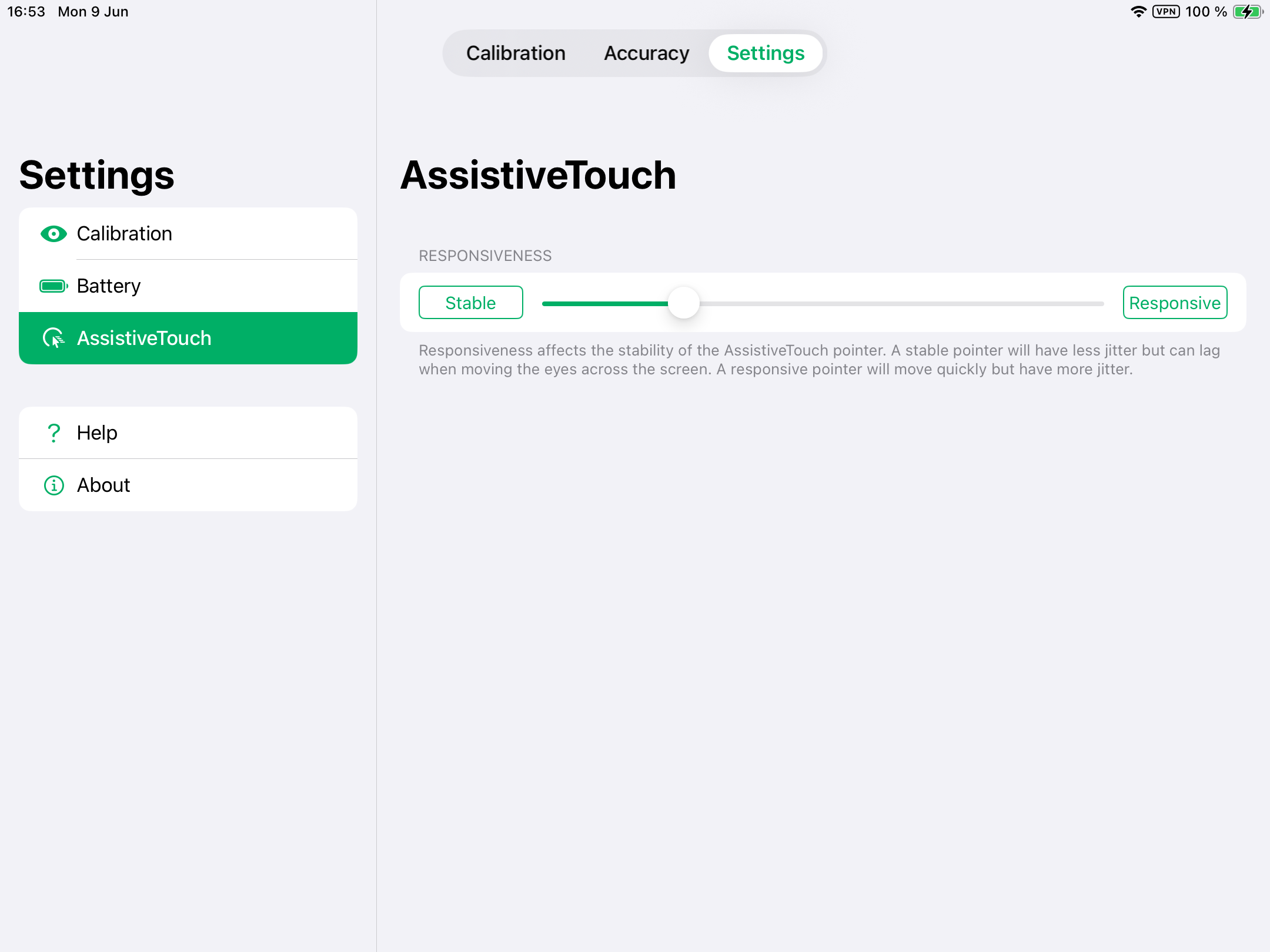
RESPONSIVENESS
Responsiveness affects the stability of the AssistiveTouch pointer.. A stable pointer will have less jitter but can lag when moving the eyes across the screen. A responsive pointer will move quickly but have more jitter.
- Open the TD CoPilot app.
- Select Settings.
- Select Assistive Touch
- Select the Stable or Responsive buttons to set the RESPONSIVENESS level between Stable and Responsive.
Help 
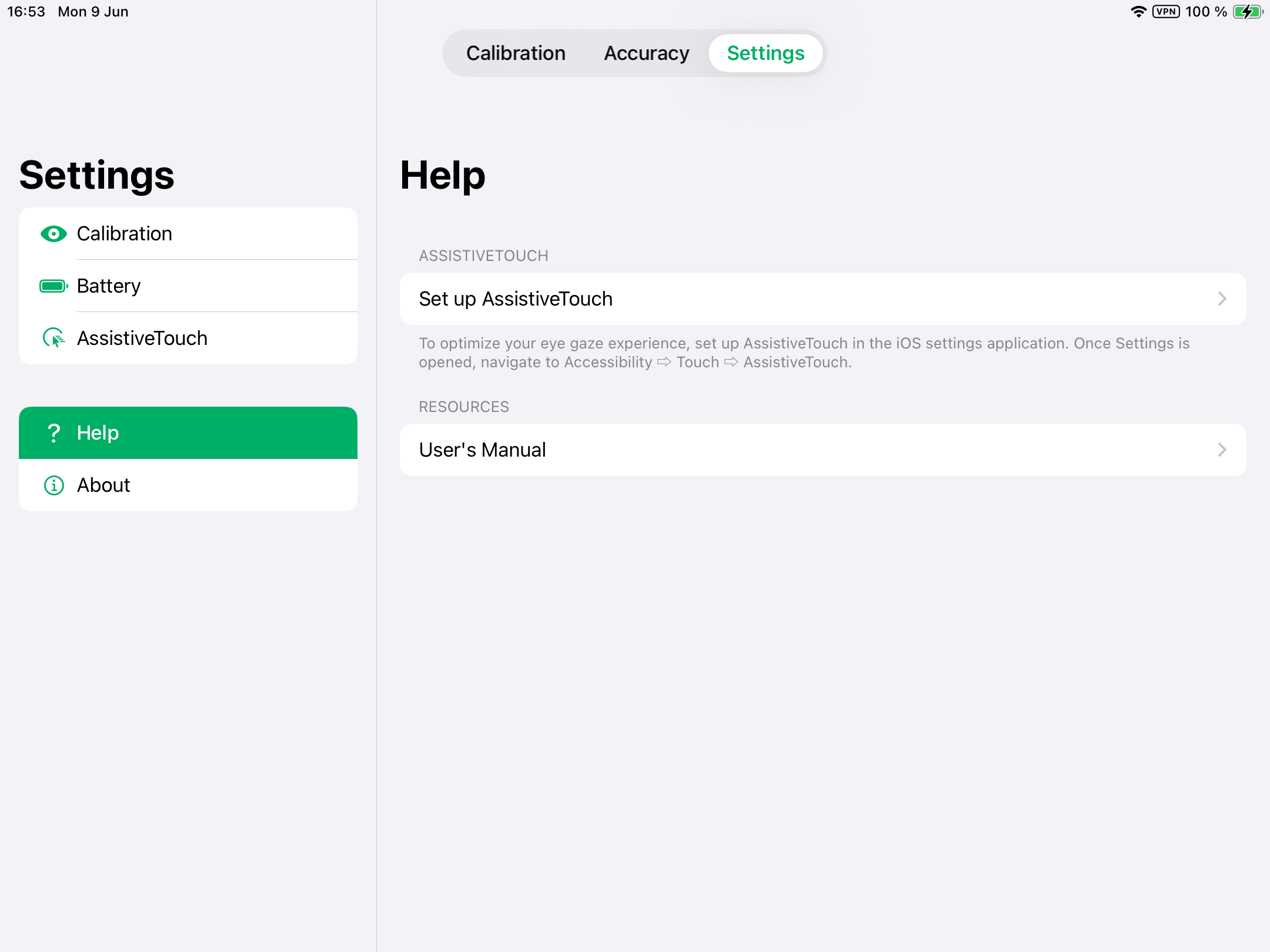
This page provides information about where to go to optimise the eye gaze experience and where to find the User’s Manual.
ASSISTIVE TOUCH
- Select the Set up AssistiveTouch button to go to the iPadOS settings.
RESOURCES
- Select the User’s Manual button to open the User’s Manual as a PDF on the iPadOS device.
About 
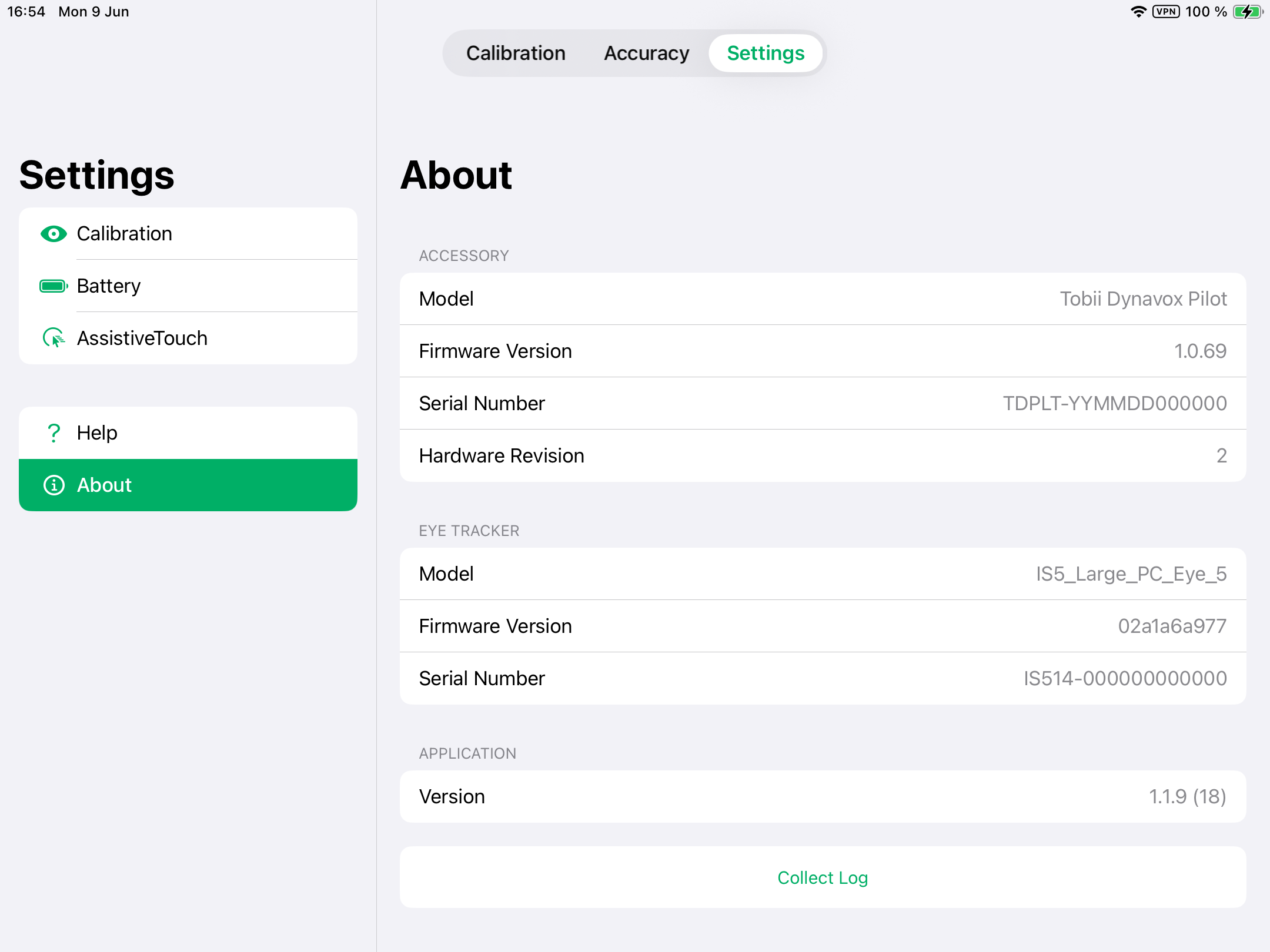
To get detailed information about theTD Pilot and eye tracker:
- Open the TD CoPilot app.
- Select Settings.
- Select About.
To collect the logs for theTD Pilot and eye tracker:
- Open the TD CoPilot app.
- Select Settings.
- Select About.
- Select the Collect Logs button.